DXF vs STEP vs IGES: Which File for Which Process
How to choose the right CAD file format for laser cutting, bending, CNC machining and welded assemblies
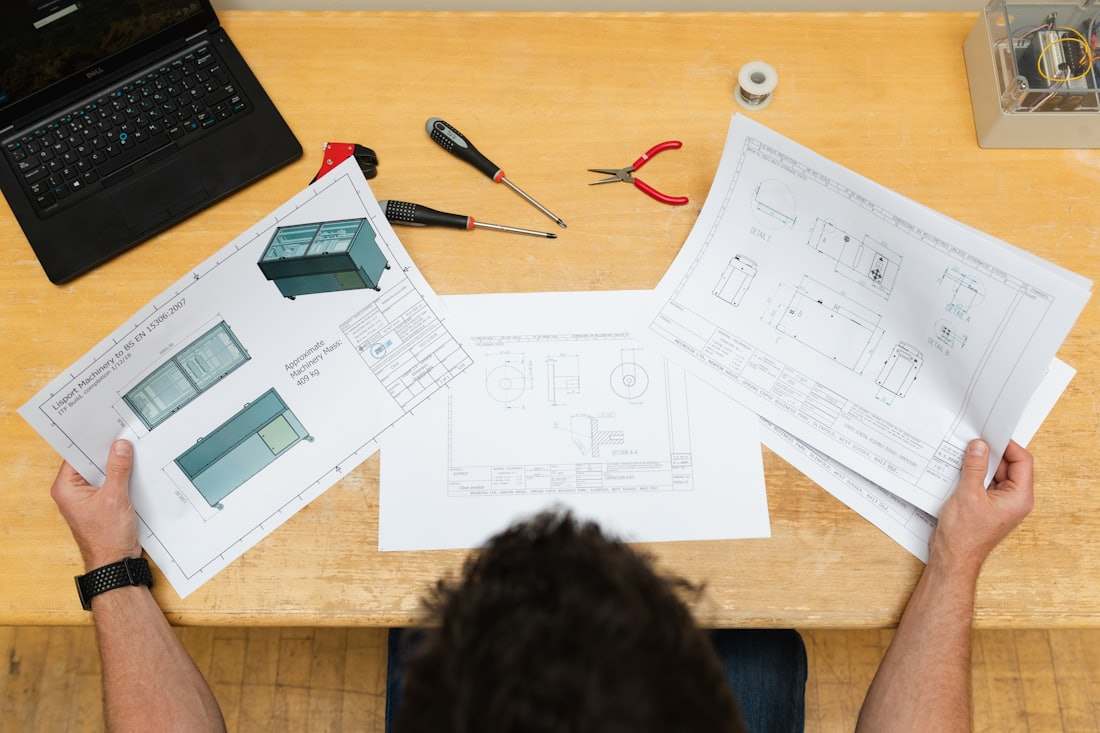
DXF, STEP and IGES are the three file formats workshops ask for, and each carries different information: DXF is a flat 2D outline used to program a laser or plasma cutter, STEP is a full 3D solid model that preserves exact geometry for CNC machining and folded sheet metal, and IGES is an older 3D surface format still used to exchange models with legacy CAD systems. Sending the wrong format, or a PDF drawing instead of any of them, forces the workshop to redraw the part before quoting, which adds a day or more before you see a price.
This page explains what each format actually contains, gives a worked example of preparing a bracket for laser cutting versus CNC machining, and lists what to check before uploading.
What each format contains
A DXF file describes 2D geometry only: lines, arcs and circles on a flat plane, with no thickness or bend information. It is the correct format for a laser, plasma or waterjet cutter and for punching, because those machines cut a flat sheet. A sheet metal part with bends should be sent as a DXF of the unfolded flat pattern, not the 3D formed shape, or as a STEP file of the 3D part with the material thickness and bend lines defined, letting the workshop unfold it themselves.
STEP (ISO 10303, .stp or .step) is a full 3D solid model with exact surfaces, holes, pockets and, for an assembly, individual part positions. It is the standard for CNC milling, turning and any part with 3D features, because the CAM software reads the true geometry directly rather than a 2D projection. IGES (.igs) is an older surface-based 3D format, mostly seen when a customer's CAD system is old or when transferring surface data (not solids) between systems; STEP has mostly replaced it and is preferred when either is available.
| Format | Geometry type | Correct for | Not suitable for |
|---|---|---|---|
| DXF (.dxf) | 2D flat outline | Laser, plasma, waterjet cutting, punching, flat patterns | 3D machined parts, assemblies |
| STEP (.stp/.step) | 3D solid model | CNC milling, turning, sheet metal 3D with bends, assemblies | none, if the model is accurate |
| IGES (.igs) | 3D surface model | Legacy CAD exchange, surface-only data | solid-dependent CAM operations, can lose closed volumes |
| PDF drawing | 2D image, not geometry | Reference only, tolerance and finish notes | cutting or machining without a DXF/STEP alongside it |
Worked example: a bent bracket
A bracket is 150 x 80 mm flat, bent once at 90° with a 3 mm 5754 aluminium sheet. Two correct ways to send it exist. First, a DXF of the unfolded flat pattern (150 x 80 mm outline including the bend line and any holes), with a note stating the bend angle, direction and the K-factor or bend radius used to calculate the flat pattern; the workshop cuts the DXF as drawn and bends it, with the finished 3D shape verified against a simple sketch or photo. Second, a STEP file of the finished 3D bent part, with material and thickness noted; CAM software unfolds it automatically using the workshop's own K-factor for that material and thickness, which may shift the flat pattern by 0.1-0.3 mm from what the customer calculated.
Sending only a PDF drawing of the 3D bent shape, without either file, means the workshop must recreate the geometry from dimensions on the drawing, which is slower and introduces interpretation risk on bend allowance.
Format checklist before uploading
A few common problems cause a DXF or STEP file to be rejected or re-quoted: open contours where lines do not close into a loop (the laser cannot find a cutting path), duplicate overlapping lines from a CAD export, text or dimension annotations left in the cutting layer, and units set to inches when the part was designed in millimetres or vice versa. For STEP files, check that the model is a solid, not a surface shell, and that all bodies in an assembly are positioned correctly relative to each other if multiple parts are in one file.
- DXF: all contours closed, no open lines or duplicate geometry
- DXF: cutting geometry on its own layer, text and dimensions removed or on a separate layer
- DXF: confirm units (mm vs inch) explicitly in the file name or a note
- STEP: exported as a solid body, not a surface or mesh
- STEP: material thickness and grade stated separately, since the file alone does not carry material
- Assemblies: each part correctly positioned; export sub-parts separately if position is unclear
- File version: export to STEP AP203 or AP214, the two versions all major CAD and CAM software read
Design tips
- For sheet metal with bends, send either the flat DXF with bend notes or the 3D STEP; do not send only the bent-shape DXF, which is not a real flat pattern
- Name files with part number, material and thickness, e.g. BRK-104_5754_3mm.dxf, to avoid mix-ups on multi-part orders
- For CNC machined parts, STEP is required; DXF alone cannot describe 3D pockets, chamfers or curved surfaces
- If your CAD software only exports IGES, check it opens as a solid on your end before sending; a broken surface model causes rejects
- Attach a PDF alongside the DXF or STEP for tolerance notes, finish and thread callouts that the geometry file does not carry
- For a batch of similar parts, keep one DXF per part rather than nesting them yourself; the workshop nests for material yield
Applications
| Process | Required file | Notes |
|---|---|---|
| Laser and plasma cutting | DXF (flat pattern) | closed contours, correct units |
| Waterjet cutting | DXF (flat pattern) | same as laser |
| CNC punching | DXF (flat pattern) | tool-friendly hole shapes noted |
| Sheet metal bending | DXF with bend notes, or STEP 3D | bend radius and K-factor stated |
| CNC milling and turning | STEP | solid model, tolerance called out separately |
| Welded assemblies | STEP assembly | each part positioned, weld symbols on a PDF |
| Legacy CAD exchange | IGES (if STEP unavailable) | verify solid integrity before sending |
Pricing and lead time
File format itself does not change price directly, but a wrong or incomplete file adds time: a DXF with open contours or a STEP exported as a surface shell needs correction before quoting, typically adding half a working day to a day. The three real cost drivers remain material and thickness, process complexity (number of bends, machined features, tolerance), and finish. Sending the correct format the first time, with material and thickness stated, gets a binding quote within 12 hours; incomplete files can push the quote response past that window while the workshop requests clarification.
Frequently asked questions
A PDF alone slows the process because we would need to redraw the geometry. For laser or waterjet cutting, convert or redraw as a DXF; for machined or 3D parts, a STEP file is needed. We can help redraw simple flat parts from a PDF on request.
Upload your DXF or STEP file and receive a binding quote within 12 hours.