How to Prepare a DXF File for Laser Cutting
Layers, units, closed vectors and common errors that stop a DXF from quoting cleanly, with a fix-it checklist
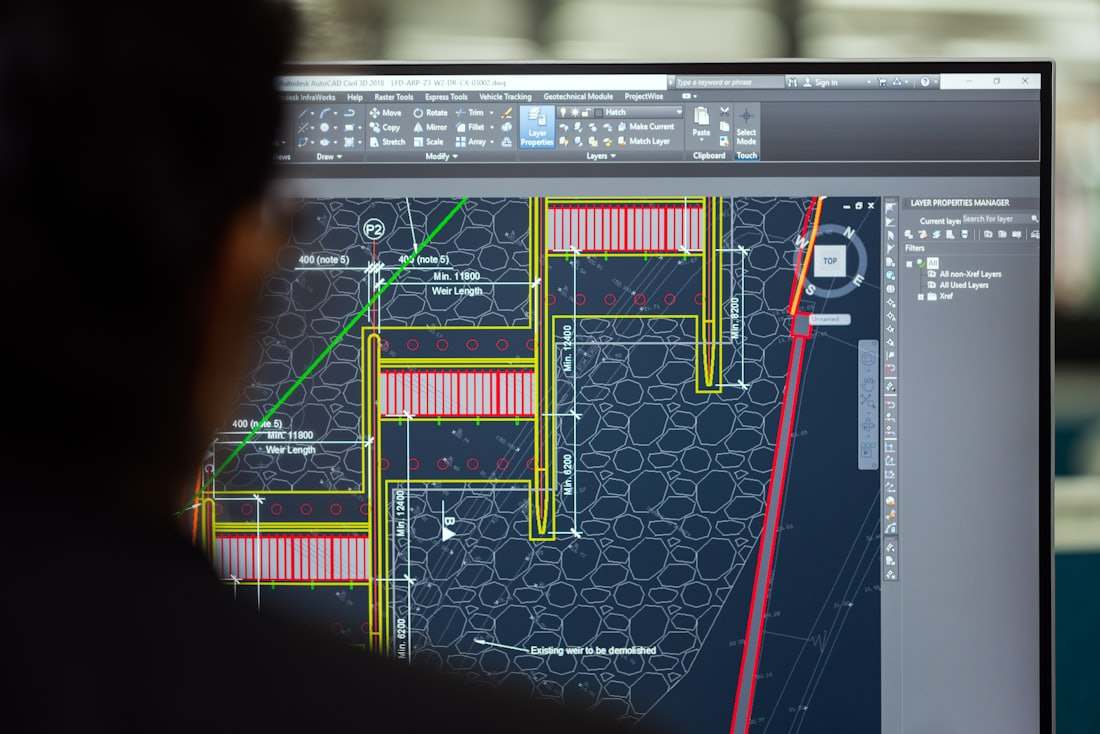
A DXF file that opens fine in your CAD software can still fail on a laser cutting bed if paths are not closed, units are ambiguous, or nested duplicate lines confuse the nesting software. CutLinq accepts DXF and STEP files, but DXF is a flat 2D format with no built-in tolerance for the small errors that CAD-to-CAM translation introduces.
This page is a practical checklist: what units to set, how to close vector paths, which line types to avoid, and the specific errors that most often delay a quote or produce a bad first cut.
Units, scale and the number one cause of wrong-size parts
DXF carries no mandatory unit header in older R12 format, and many CAD exports default to inches even when the drawing was built in millimetres. A part designed at 100 mm that exports as 100 units with an inch header will cut at 2540 mm. Always set drawing units to millimetres explicitly before export, and state the units in the file name or a note to CutLinq if there is any doubt.
Check the exported file by opening it in a neutral DXF viewer and measuring a known dimension before sending it; this single check catches the most common and most expensive DXF error.
Closed paths, duplicate lines and open geometry
Every profile that should become a cut edge must be a single closed polyline or a chain of connected lines and arcs with no gaps, even a gap of 0.001 mm confuses nesting software into treating a closed shape as open, and the laser will not know where the cut path ends. Overlapping or duplicate lines on the same path (common after a trim or offset operation in CAD) cause the machine to cut the same line twice, wasting time and sometimes burning the edge.
Text, dimension lines, construction geometry and centrelines should be deleted or moved to a separate, clearly named layer before export; if they are left on the cutting layer, the machine will try to cut them.
| Common DXF error | Effect on the cut | Fix |
|---|---|---|
| Open path (gap in geometry) | Nesting software rejects or misreads the part | Join all segments; use CAD 'join' or 'heal' command |
| Duplicate overlapping lines | Double cutting, wasted time, edge burn | Delete duplicates with an 'overkill' or cleanup command |
| Mixed units (inch vs mm) | Part cut at wrong scale, sometimes 25.4x | Set units explicitly, verify with a known dimension |
| Text/dimensions on cut layer | Machine attempts to cut text strokes | Move to separate layer or delete before export |
| Splines instead of arcs/lines | Some CAM software approximates poorly | Convert splines to polylines with fine tolerance |
Layer setup for multi-thickness or multi-process files
If a single DXF contains parts of different thickness or material, put each thickness or material on a separate, named layer (for example CUT_3MM_S235, CUT_5MM_304) rather than mixing them, since the laser parameters change with thickness and material and cannot be inferred from geometry alone.
For parts that combine cutting and engraving (part numbers, logos, fold lines), put engrave geometry on its own layer named clearly, since engraving uses a different power and speed setting than cutting and the two must not be confused.
Minimum feature sizes to check before sending
Before export, check that no hole is smaller than the material thickness (holes smaller than thickness distort during laser cutting and may not be round), that no slot is narrower than 1x thickness, and that the smallest internal corner radius on a part is at least half the material thickness to avoid stress concentration and to let the laser follow the path cleanly at speed.
Design tips
- Set drawing units to millimetres explicitly in your CAD software before exporting to DXF.
- Close every cut profile into a single continuous path with zero gap; use a 'join' or 'heal' command to check.
- Delete text, dimensions and construction lines, or move them to a clearly named non-cutting layer.
- Separate parts of different thickness or material onto named layers within one file.
- Keep minimum hole diameter equal to or greater than material thickness.
- Convert splines to polylines with a fine tolerance (0.01-0.02 mm) since not all CAM software reads splines accurately.
- Save as DXF R2013 or later ASCII format for the widest compatibility, and verify a known dimension after export.
Applications
| Industry | Example parts | Typical material |
|---|---|---|
| Sheet metal enclosures | Chassis panels, brackets | DC01, S235JR 1-3 mm |
| Signage and architectural | Cut-out panels, letters | Aluminium, stainless 1-4 mm |
| Machinery guarding | Guard panels, access covers | S235JR 2-4 mm |
| Prototyping and R&D | Test brackets, jigs | Mild steel, aluminium, plastics |
| HVAC | Duct flanges, transition pieces | Galvanised steel 0.6-1.5 mm |
Pricing and lead time
A clean DXF with correct units, closed paths and clear layers is quoted the same day it is reviewed; a file with unit ambiguity, open paths or mixed thickness on one layer requires a clarification round-trip that typically adds 0.5-1 working day before the binding quote is issued. Once material and process are confirmed, laser-cut parts are typically ready in 2-4 working days across Egypt, the UAE and Saudi Arabia.
Frequently asked questions
Yes, STEP and IGES for 3D or bent parts, and DXF or DWG for flat 2D profiles; DXF is preferred for pure 2D laser cutting since it maps directly to cutting geometry.
Upload your DXF or STEP file, and receive a binding quote within 12 hours.